
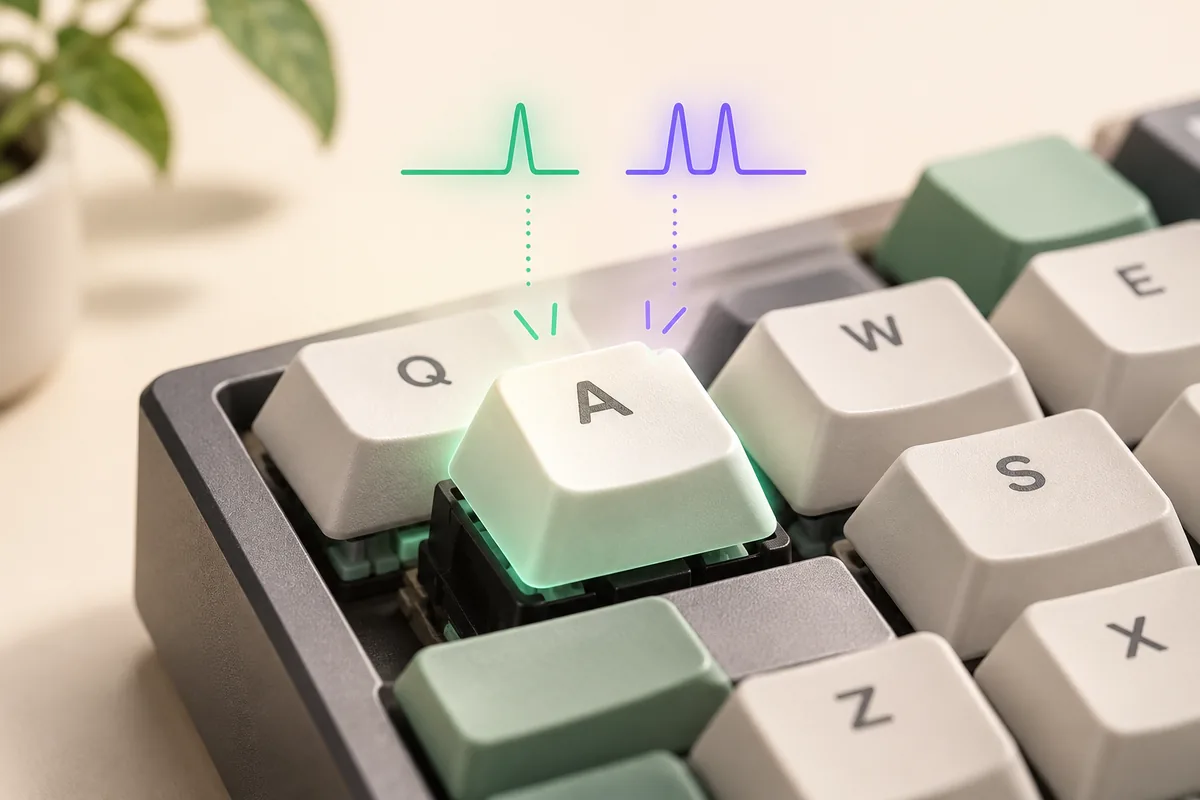
What a keyboard double click test actually measures
The phrase keyboard double click test is convenient, but the underlying event is different from a mouse double click. A mouse test watches pointer clicks. A keyboard test watches keydown and keyup events, then compares a key with its own previous press. If the same key is reported again only a few milliseconds after it was released, the page can mark that pair as a possible duplicate registration.
That distinction matters because the browser only sees the event that survived the keyboard switch, firmware, connection, operating system, and browser. It cannot inspect the electrical contact inside the switch. A useful result therefore says that the browser received an unusually close repeat during this session. It does not prove which component caused it, and a clean run does not guarantee that an intermittent fault will never return.
How to run a controlled keyboard chatter test
A controlled sample is more useful than typing quickly. The goal is to give the browser a sequence where every physical press is intentional and far apart. The following process works for a browser-based checker and also gives you a repeatable method if you use a desktop diagnostic program.
Do not start by holding a key down or by trying to create a fast double tap. Those actions answer a different question. You are checking whether a single press can create an extra event when your hand is moving at a normal, careful pace.
- Choose the suspect keyStart with a key that has produced doubled letters or repeated game actions, such as Space, Enter, Backspace, or a frequently used letter. Test one key at a time so the evidence stays easy to interpret.
- Focus the test areaClick the page's input area, then confirm that the page is receiving key events. Keep other text fields, macros, rapid-fire profiles, and remapping layers out of the sample.
- Make slow single pressesPress and release the key once, pause for a moment, and repeat. Aim for 20 to 30 samples. Do not press harder or at a strange angle unless that reproduces the real symptom.
- Review the interval and keyLook for the shortest gap between releases and the next press of the same key. Record which key was flagged and whether the result repeats across the session.
- Retest before decidingRun the same sample in another browser or application. If possible, try another USB port or computer. Consistent evidence across contexts is more useful than a single red label.
How to read same-key intervals
A timing threshold is a review window, not a universal definition of failure. Human speed varies, keyboard firmware filters switch bounce differently, and browser scheduling is not laboratory instrumentation. Use the ranges below to decide how carefully to retest rather than to declare a keyboard faulty from one number.
When a tool lets you change its threshold, begin with a conservative value and keep your taps slow. Raising the threshold makes the test more sensitive, but it also makes an intentional fast double tap easier to flag. A result is strongest when the same key is repeatedly below the window while your procedure stays deliberate.
| Observed gap | Useful interpretation | Next action |
|---|---|---|
| Under 20 ms | Very unlikely to be a deliberate human repeat; possible chatter or duplicate event. | Repeat with slow taps and check another app or browser. |
| 20–60 ms | Suspicious, but the cause can include a fast tap, macro, firmware behavior, or switch bounce. | Collect a longer sample and disable remapping or rapid-fire features. |
| 60–120 ms | A grey area for fast typists and intentional double presses. | Lower the threshold, slow down, and compare several sessions. |
| Over 120 ms | Usually compatible with normal repeated typing when the key was released. | Keep testing if the real-world symptom still appears. |
Why one key press can become two
Mechanical and membrane keyboards both rely on electrical contacts that need a short settling period. When a contact bounces, the controller may see more than one transition. Firmware normally applies debounce filtering so those transitions become one key event. A worn, dirty, wet, or oxidized contact can produce a bounce that outlasts the filter, allowing a second event through.
A switch is only one possibility. Vendor software can add macros, rapid-fire actions, layers, or remapped keys. Firmware settings can alter debounce behavior. A Bluetooth connection, an application, an input method, or a browser extension can also make an input look duplicated even when the switch is fine. This is why a browser test should be followed by a context comparison instead of an immediate repair claim.
- Switch or contact chatter caused by wear, dust, liquid residue, or oxidation.
- Firmware debounce settings that do not suppress a longer-than-normal bounce.
- Macros, remapping layers, rapid-fire profiles, or accessibility utilities.
- Application, input-method, browser, connection, or driver behavior that duplicates visible input.
Key chatter versus auto-repeat and other false positives
Holding a key is not the same as a chattering switch. Operating systems intentionally send repeat events when a key remains down, which is how a held letter keeps appearing in a text field. The browser's KeyboardEvent.repeat flag can identify many of those events. A careful tester should ignore held-key repeats and focus on a fresh press after a release.
Intentional double taps are another source of noise. If you press a key twice quickly to reproduce the problem, the test cannot know whether the second event was planned. Use slow, separate taps for diagnosis, then reproduce the exact real-world action in a different test when you need to understand a game or application symptom.
Finally, test outside the page. If a duplicate appears only in one editor, game, browser extension, or input method, the problem may be in that software path. If the same physical key repeats in a plain text field and across two applications, keyboard-side evidence becomes more persuasive.
- Release the key fully before the next sample.
- Pause macros, remaps, rapid-fire modes, and vendor profiles for the diagnostic run.
- Use a plain text field or a second browser to check whether the symptom follows the keyboard.
- Do not treat a browser event count as a direct measurement of the switch matrix.
What to do after a suspicious result
A suspicious result is a reason to collect better evidence. Save the key name, the shortest interval, the threshold, the browser, and the number of deliberate samples. Then repeat the procedure after reconnecting the keyboard or switching contexts. A repeated pattern on the same key is much more actionable than a single event with no setup notes.
If the result disappears after disabling software profiles, keep the hardware unchanged and restore settings one at a time. If the result follows the keyboard to another computer, inspect the manufacturer's firmware and support guidance. For a board under warranty, document the behavior before opening the case or applying cleaning products. If you clean a switch, follow the manufacturer's instructions and keep liquid away from the electronics.
Accuracy, privacy, and limits of a browser test
A browser-based keyboard double click test is a convenient first check, not a hardware analyzer. It measures events delivered to the page and timestamps them with browser APIs. CPU load, background-tab throttling, operating-system scheduling, connection latency, and browser differences can affect a measured interval. The page also cannot see a key event that the firmware or operating system filtered before it reached the browser.
Use a desktop or laptop with the physical keyboard you want to understand. Touch input and keyboard activation of buttons are not substitutes for testing a physical switch. The measurement can stay local to the page, but site-wide analytics, advertising, or hosting services may follow their own policies; read the site's Privacy Policy for those practices.
For a separate mouse symptom, use the site's mouse double click test. It has a different input model and should not be used to draw conclusions about a keyboard.
Keyboard double click test FAQ
What does a keyboard double click test measure?
It compares browser-visible presses of the same key and highlights unusually short intervals. The result is evidence of a possible duplicate event, not a direct electrical measurement of the switch.
Is key chatter the same as holding a key down?
No. Holding a key can create intentional operating-system auto-repeat. Key chatter is an unexpected extra registration around a fresh press. Release the key between samples and ignore events marked as repeat when the tool supports that distinction.
How many key presses should I record?
Start with 20 to 30 slow, separate presses on the suspect key. Chatter can be intermittent, so a longer sample or a second session is more informative than a ten-second clean run.
What interval suggests keyboard chatter?
Very short gaps, especially in the low milliseconds, are difficult to create deliberately and deserve a retest. Gaps around 20–120 ms are more ambiguous because fast typing, macros, firmware behavior, and intentional taps can overlap that range.
Can a browser test prove that my keyboard switch is broken?
No. It can show a repeatable browser-visible pattern that helps you investigate. Confirm the behavior in another app or computer and follow the manufacturer's support or warranty process before opening the keyboard.
Should I use the mouse double click test for a keyboard?
No. The mouse page listens for pointer clicks, while a keyboard check needs key events and same-key timing. Use the mouse double click test for a mouse and this guide for keyboard input.